The last boot USB you'll ever need
Level up your OS reinstalls- May 11, 2024
- 5 min read
- #guides
- #sysadmin
- #ventoy
Creating bootable USBs is a pain.
It’s a royal kind of pain if you have to create a bootable Windows USB on anything, that does not start with “Win” and ends with “dows”.
Usually it means that you have a bunch of unknown drives with god knows what burned into them. So you try to boot into them one by one to guess which exact version of which exact OS you already have burned god knows how long ago.
You plug the most promising flash drive into your machine, press F11, and are immediately greeted by Ubuntu Server 16.04 that you’ve written to that drive back in high school. Ugh.
The last straw that broke me into finding a solution was the need to update the BIOS on my Linux machine. In its infinite wisdom, Lenovo decided not to provide support for fwupd, and that operation has to be completed only on Windows.
So it means creating a bootable Windows PE USB…
NO THANK YOU.
If only there was a solution to just put a bunch of ISOs to an external SSD and get a pretty boot menu out of them…
Ventoy
Oh, look, a solution to that exact problem.
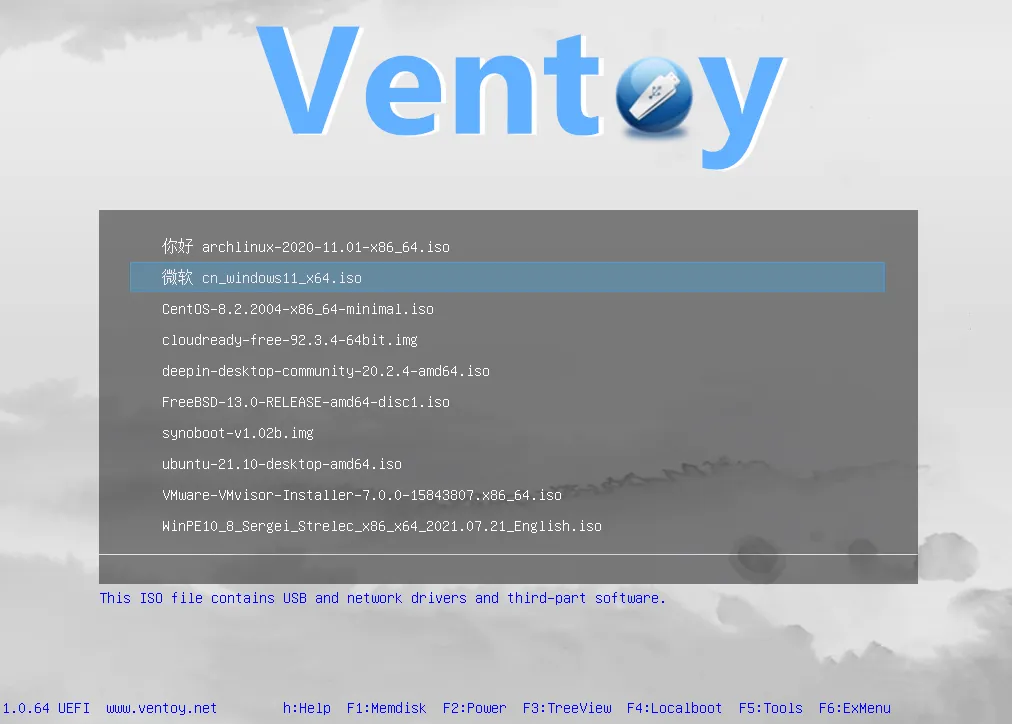
Ventoy is a boot manager, that you install on your external drive, put a bunch of ISOs (not only, even pure .efi files!), and boot them from a nice-looking menu.
Caveats
Some important things you need to know:
- Limited support 🔗 of both UEFI and Legacy BIOS at the same time (very platform dependent). For me it’s a non-issue, because I don’t have any CSM/Legacy BIOS machines
- Some issues 🔗 with Secure Boot (may require key provisioning)
Requirements
Here’s my BOM for never (hopefully) ever having to write a bootable USB again:
- ADATA 240GB 2.5” SATA SSD - ~20$
- UGREEN US221 external SATA drive enclosure - ~10$
Total: ~30$
You can do it on any USB drive that has sufficient space, not specifically on SSDs/HDDs.
After choosing the appropriate hardware, you’ll need to install Ventoy.
There are builds for Windows and Linux on the Ventoy website 🔗.
For Arch there is an AUR package:
$ yay -S ventoy-binOr for building from source instead of prebuilt binaries:
$ yay -S ventoyBurning the drive
After installing the Ventoy, plug in your drive and run the Ventoy GUI application:
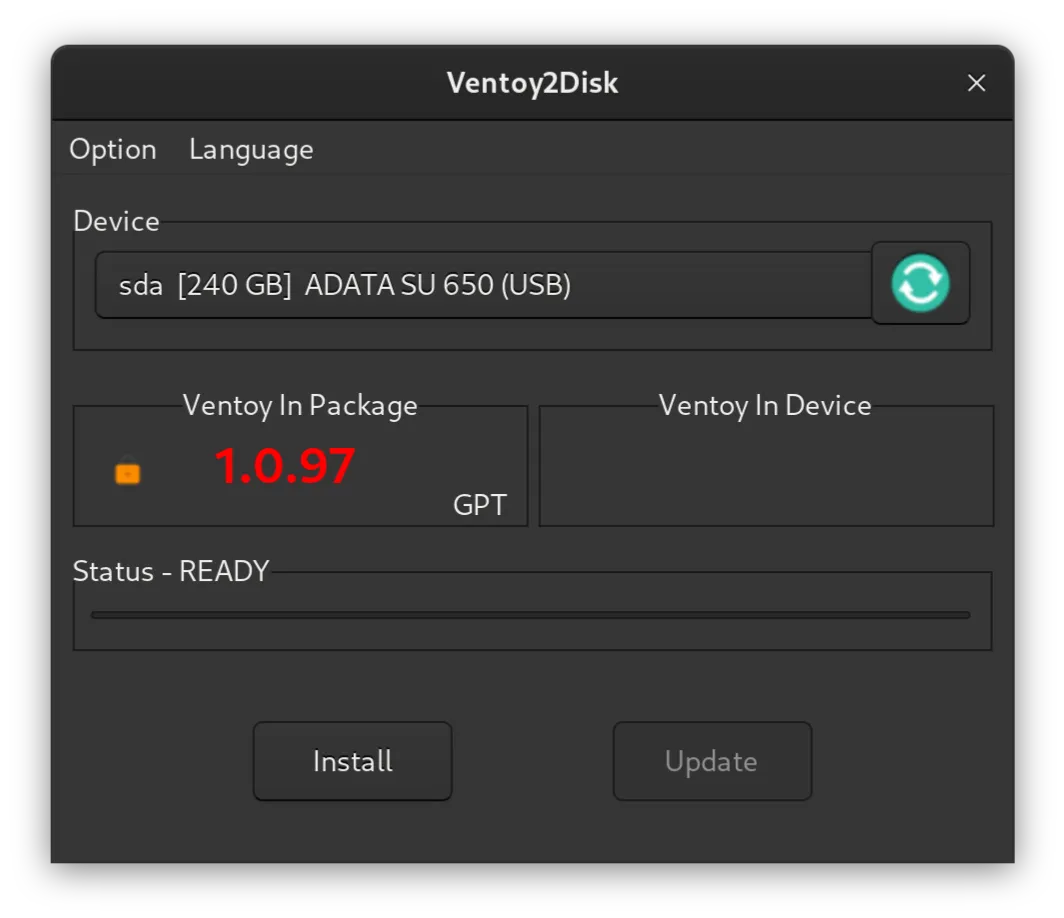
In Options, select the desired partition style:
- MBR - good Legacy BIOS support, varying platform-specific UEFI machines support, 4 partitions max, no support for disks over 2TB (Why would you need that on your bootable USB drive? Idk. Having every one of the existing Linux ISOs on hand, perhaps)
- GPT - good UEFI support, even more varying platform-specific Legacy BIOS machines support
The default option is MBR, I’ve decided to go with GPT.
There is a couple more options, like Secure Boot support and which language should be used, I’ve kept both of them unchanged (Secure Boot enabled, English language).
Also, you can choose to reserve some space on the disk in the “Partition Configuration” menu option, for having additional volumes to use your USB drive as a, you know, USB drive. Or as a persistent storage for your Live OSes.
When you’re satisfied with the selected options, choose your drive and press “Install”.
It will:
- Repartition your device, losing all the data
- Create an EFI partition
- Create a Ventoy partition for storing your ISOs
Configuring Ventoy
After installing Ventoy you can configure it via json config, located at Ventoy volume, at ventoy/ventoy.json, here’s what options I choose:
$ cat /run/media/lynx/Ventoy/ventoy/ventoy.json
{ "control": [ { "VTOY_DEFAULT_SEARCH_ROOT": "/iso" }, { "VTOY_DEFAULT_MENU_MODE": "1" }, { "VTOY_TREE_VIEW_MENU_STYLE": "1" } ]}VTOY_DEFAULT_SEARCH_ROOT: limits where it looks for ISOs, I want them to be in the/isofolder instead of the drive’s rootVTOY_DEFAULT_MENU_MODE: switches between list (0) and tree (1) modes. List view collects the files from all the subfolders and displays them as a plain list. Tree view is a “folders+files” mode. When having a lot of files I prefer tree viewVTOY_TREE_VIEW_MENU_STYLE: prefix folders with “DIR” and files with file size (0), or don’t (1)
Here’s a full list 🔗 of available config options.
What’s on my drive
Let’s take a look:
/run/media/lynx/Ventoy/iso├── EndeavourOS│ └── EndeavourOS_Gemini-2024.04.20.iso├── Netboot│ └── netboot.xyz-multiarch.iso├── Tools│ └── memtest86-usb.img├── TrueNAS Scale│ └── TrueNAS-SCALE-24.04.0.iso├── Ubuntu│ ├── Desktop│ │ └── ubuntu-24.04-desktop-amd64.iso│ └── Server│ └── ubuntu-24.04-live-server-amd64.iso├── Windows│ ├── Windows 10│ │ ├── x64│ │ │ ├── en-us_windows_10_consumer_editions_version_22h2_updated_april_2024_x64_dvd_9a92dc89.iso│ │ │ └── ru-ru_windows_10_consumer_editions_version_22h2_updated_april_2024_x64_dvd_9a92dc89.iso│ │ └── x86│ │ ├── en-us_windows_10_consumer_editions_version_22h2_updated_april_2024_x86_dvd_9a92dc89.iso│ │ └── ru-ru_windows_10_consumer_editions_version_22h2_updated_april_2024_x86_dvd_9a92dc89.iso│ └── Windows 11│ ├── en-us_windows_11_consumer_editions_version_23h2_updated_april_2024_x64_dvd_d986680b.iso│ └── ru-ru_windows_11_consumer_editions_version_23h2_updated_april_2024_x64_dvd_d986680b.iso└── Windows PE └── HBCD_PE_x64.iso- EndeavourOS Gemini install ISO for when I’ll imminently bork my laptop’s OS installation
- TrueNAS Scale 24.04 for when I’ll imminently bork my NAS’s OS installation
- Ubuntu 24.04 LTS Desktop and Server variants
- Clean Windows 11/10 images, both in Russian and in English
- Hiren’s Boot CD 🔗 for updating (god, I hate Lenovo) my laptop’s BIOS
- Netboot.xyz 🔗 ISO image (but maybe it’s a good idea to replace it with an
.efivariant) for when I need to quickly run some very specific and not very on-hand Linux image - Memtest86, does not require an explanation
If you know any fine additions to that list - please leave a comment :)
Hardware solutions
There is a company called iODD 🔗 which makes drive enclosures that can emulate virtual CD/DVD/USB drives from ISOs and some other formats.
It’s more compatible with weird machines, but there were none of them where I live, and the price is a bit bitey ($70+ for an enclosure without the disk).
There are some extra features, like encryption, but I don’t really need them.
It’s also compatible with Secure Boot out of the box (guess why) without the need to provision additional keys, but that’s not a huge concern for me.
But Ventoy can do things which no hardware solution can, like performing unattended installation, and don’t require any additional pricey hardware.
Comments